
Store sharing
Import another store's products into yours. When a customer buys, your store automatically orders upstream using your balance, receives the card key, and passes it to your customer — all invisibly.
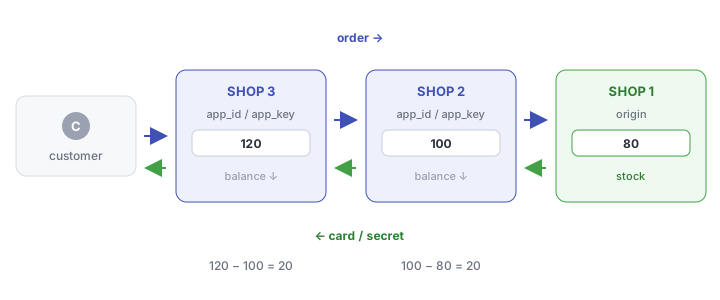
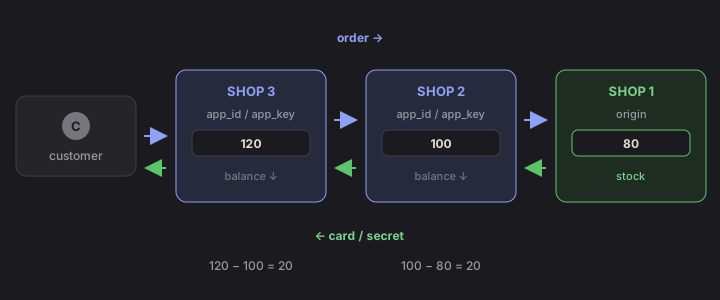
Chains can nest indefinitely — whoever integrates with you can themselves be integrated with. Delivery always originates from the store at the top of the chain.
Connecting to a store
1. Register on their store
Create an account on the store you want to source from, then collect two things from User centre → My profile:
- Merchant ID (
app_id) - Merchant key (
app_key)
2. Add the store
In your own admin panel → Store sharing → Add store. Enter their store address plus the ID and key, and confirm.
3. Import products
Once added, the actions column has a plug icon. Click it to import their products into one of your local categories.
Imported products are disabled by default — adjust prices first, then enable them.
4. Top up your balance
Do not skip this. When your customer orders, the system pays upstream from your balance on their store. No balance means you take the money and cannot deliver.
Recommended:
- Keep a healthy balance upstream
- Install a balance-alert plugin so you are warned before it runs out
What happens when a customer orders
- Your customer pays on your store
- Your store places an order upstream with
app_id/app_key, paying from your balance - Upstream delivers (a card key, or via their own delivery plugin)
- The result is stored on your local order and shown to your customer
The customer never sees that the goods came from elsewhere.
Pricing and margin
Your margin is your selling price minus the price upstream charges you.
What upstream charges depends on your member tier on their store — higher tiers pay less. To get a better price, top up there to reach a higher tier, or ask them to adjust your tier directly.
Price synchronisation keeps your local prices tracking upstream changes automatically.
Being the upstream
To let others source from you:
- Enable API access on your products or they cannot be pulled — see products
- Assign each partner an appropriate member tier, which determines their price
- To control the reseller price of a specific product, set per-tier prices under that product's member pricing
Protocol details are in the API reference.
Checklist
| Symptom | Cause |
|---|---|
| Adding the store fails | Wrong address, merchant ID or key; or sharing is not enabled on their side |
| Product list comes back empty | Their products do not have "API access" enabled |
| Customer order errors, nothing delivered | Your balance upstream has run out |
| Prices higher than expected | Your tier upstream is too low, or they set a specific price for that product |
Markup templates
Markup templates in the admin panel define a reusable markup rule (say, upstream price × 1.2) that you can apply in bulk to imported products, instead of editing prices one at a time.