
Install on Windows
Setting up PHP, MySQL and URL rewriting on Windows is painful. Use Docker instead — it is all mouse clicks, with no commands to type.
If you only want to try the software on your own PC, Docker is by far the easiest route. For a real, public-facing store, put it on a Linux server — see BaoTa panel.
Step 1: Install Docker Desktop
- Go to https://www.docker.com/products/docker-desktop/ and download the Windows build
- Run the installer and accept the defaults
- If it offers to install WSL 2, say yes — it handles that itself
- Reboot when it finishes
- Open Docker Desktop and wait for the icon in the bottom-left to turn green
Requires 64-bit Windows 10 version 2004 or newer, or Windows 11. Older systems cannot run it — use BaoTa panel instead.
If you see "WSL 2 installation is incomplete", open PowerShell as administrator, run
wsl --update, and reboot.
Step 2: Pull the image
In the search box at the top of Docker Desktop, type:
ghcr.io/lizhipay/acg-fakaand choose Pull. The image is about 265 MB, so a minute or two depending on your connection.
If the search finds nothing, switch the source from Docker Hub to the full image address, or just use the command-line method in step 4 — one command and it is done.
Step 3: Run the container
Find the image under Images, click Run, expand Optional settings, and fill it in like this:
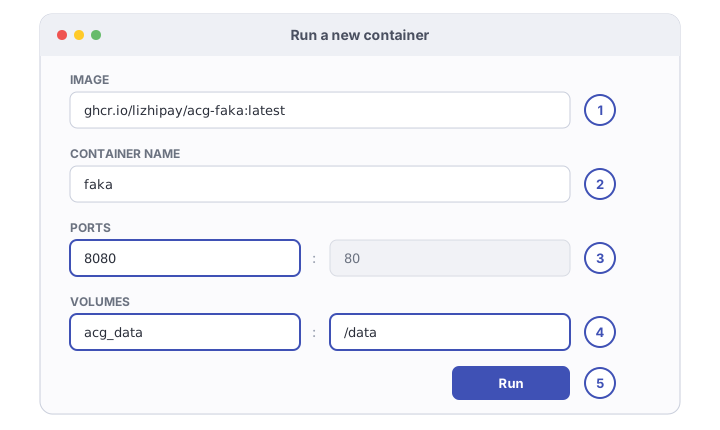
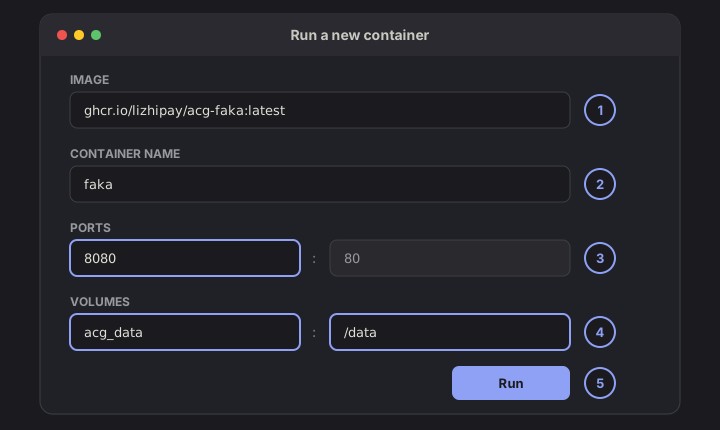
| # | Value | Notes |
|---|---|---|
| ① | ghcr.io/lizhipay/acg-faka:latest | Image name, usually pre-filled |
| ② | faka | Container name — anything you like, it just makes it easy to find |
| ③ | Host port 8080 | The 80 on the right is the port inside the container. Do not change it |
| ④ | acg_data → /data | Data volume. Without it, deleting the container deletes your data |
| ⑤ | Click Run | Off it goes |
Here is why ③ looks the way it does:
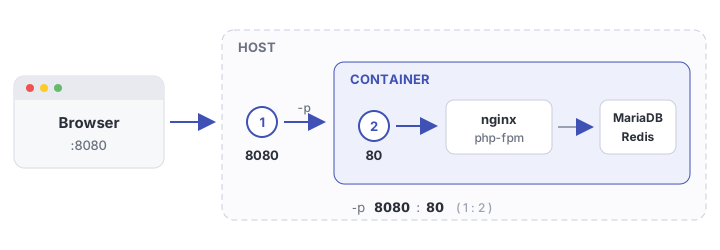
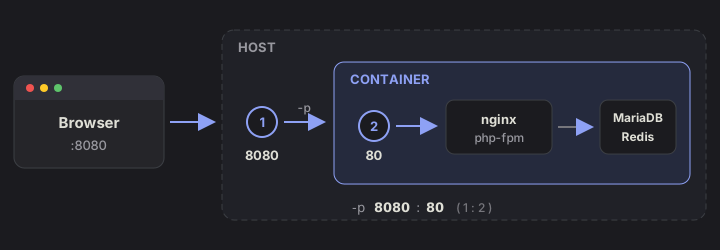
The left side is the port you type in the browser; the right side is the port inside the container, which is always 80.
On Windows, port 80 is often already taken by IIS or something else, which is why
8080is suggested here.
Step 4: Open the site
In your browser:
http://localhost:8080Give it about 20 seconds — the container initialises its database first — then refresh and the installer appears.
Leave the database step blank and click next; the bundled database is already set up.
Once you have created your admin account, the panel is at:
http://localhost:8080/adminPrefer the command line?
One line in PowerShell does exactly the same thing:
docker run -d --name faka -p 8080:80 -v acg_data:/data --restart unless-stopped ghcr.io/lizhipay/acg-faka:latestLetting other people reach it
localhost only works on your own machine. To let others in:
- Allow port
8080through Windows Firewall - Others on your LAN use
http://your-lan-ip:8080 - For access from the internet you need a public IP or a tunnelling service
Do not run a real store on a home PC. Power cuts, reboots and the lack of a public IP will all bite you. Get a server and use BaoTa panel or Docker.
Day-to-day operations
All of these are mouse clicks on the Containers page in Docker Desktop:
| To do this | Do that |
|---|---|
| View logs | Click the container name, open the Logs tab |
| Restart | Restart button on the right of the row |
| Stop / start | Stop / play button on the right of the row |
| Shell inside | Click the container name, open the Exec tab |
Can I do it without Docker?
Yes, but you are on your own:
- Install phpstudy or WampServer with PHP 8.0 or newer
- Enable
bcmath,gd,curlandzip(bcmathis mandatory — without it the program throws a fatal error) - Extract the source into your web root
- Configure URL rewriting — IIS rules for IIS, nothing to do for Apache, nginx rules for nginx
- Open the site and run the installer
This is considerably more work than Docker and much harder to debug. Not recommended for beginners.