
Install with Docker
The official image bundles nginx, PHP 8.2, MariaDB and Redis. There is nothing to configure. Start it, open a browser, and the installer is waiting for you.
- Image:
ghcr.io/lizhipay/acg-faka:latest - Architectures:
amd64,arm64(ARM servers and Apple-silicon Macs both work) - Size: about 265 MB
Install Docker first
Skip this if you already have it. It is fine if you have never heard of Docker — think of it as a pre-built machine: the application, PHP, the database and Redis are all sealed inside, so you do not install and version-match them one by one. Pull it, start it, and you have a configured server.
Linux server
SSH into the server. One command installs it (works on Debian, Ubuntu and CentOS):
curl -fsSL https://get.docker.com | shIf the download is slow where your server is, use a mirror:
curl -fsSL https://get.docker.com | sh -s -- --mirror AliyunStart it and enable it at boot:
systemctl start docker && systemctl enable dockerVerify — a version number means you are done:
docker -vWindows / macOS
Install Docker Desktop and use its interface — see Install on Windows.
Windows requires 64-bit Windows 10 version 2004 or newer, or Windows 11. The installer sets up WSL 2 for you.
If it will not install
| Symptom | What to do |
|---|---|
| The script hangs or times out | Use the mirror command above |
docker: command not found | It did not take effect — reconnect your SSH session |
Cannot connect to the Docker daemon | The service is not running: systemctl start docker |
| Installs on CentOS 7 but will not start | The kernel is too old; move to Debian 12 or Ubuntu 22.04 |
One command
docker run -d --name faka -p 80:80 -v acg_data:/data --restart unless-stopped ghcr.io/lizhipay/acg-faka:latestWait about 20 seconds, then open http://your-server-ip. The installer appears.
Leave the database step blank and click next — the bundled database is already created and the wizard fills it in for you.
What each part of that command does
| Fragment | Purpose |
|---|---|
-d | Run in the background |
--name faka | Name the container, so docker logs faka and friends work |
-p 80:80 | Port mapping — the part people get wrong, see below |
-v acg_data:/data | Keeps data in a volume. Without this you lose everything on upgrade |
--restart unless-stopped | Bring the container back up after a server reboot |
Port mapping: -p 80:80
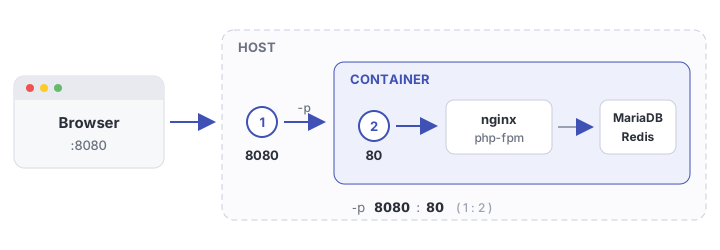
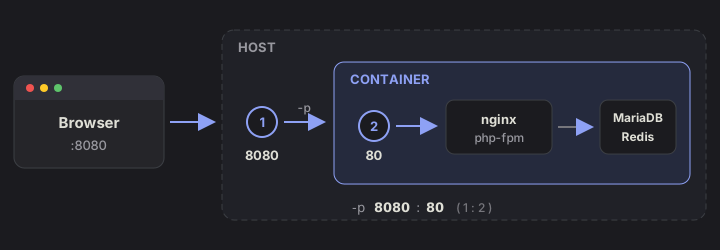
The left side is the host port (the one you type in the browser); the right side is the port inside the container.
Inside the container it is always 80. Never change the number on the right.
If port 80 on the server is already taken by another site, change the left side:
docker run -d --name faka -p 8080:80 -v acg_data:/data --restart unless-stopped ghcr.io/lizhipay/acg-faka:latestNow the address is http://your-server-ip:8080.
If the page will not open, nine times out of ten this is reversed or the host port is already in use. Try
-p 8080:80. On a cloud server you also need to open the port in the security group.
Data volume: -v acg_data:/data
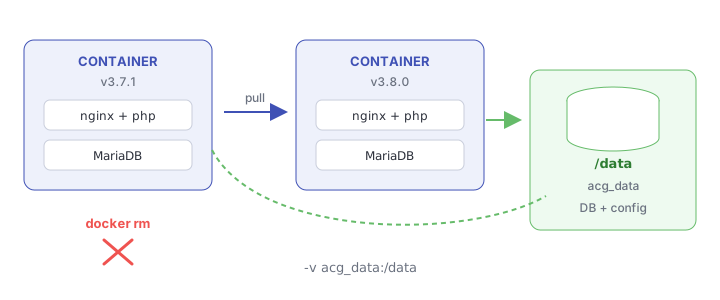
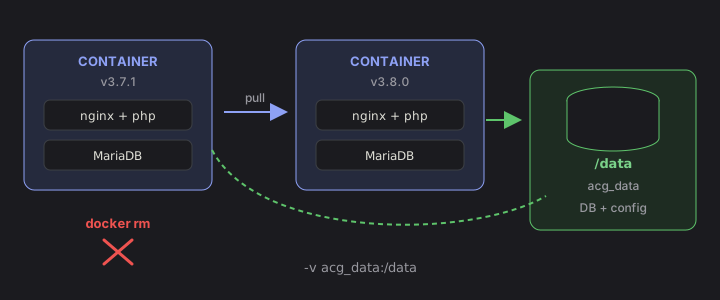
The container itself is disposable — delete it and it is gone. But the database, configuration and uploaded images all live in /data. As long as that volume survives, you can delete the container, swap the image and upgrade versions without losing anything.
Omit this and everything disappears the moment the container is removed.
Upgrading
The program upgrades itself from the admin panel — click the version number in the bottom-left corner. You normally do not need to touch the container at all.
To move to a newer image:
docker pull ghcr.io/lizhipay/acg-faka:latest
docker stop faka && docker rm faka
docker run -d --name faka -p 80:80 -v acg_data:/data --restart unless-stopped ghcr.io/lizhipay/acg-faka:latest
As long as -v acg_data:/data stays the same, no data is lost.
Everyday commands
docker logs -f faka          # Logs — always look here first
docker restart faka          # Restart
docker exec -it faka bash    # Shell inside the container
docker stop faka             # Stop
HTTPS in one command
The image already contains nginx and certbot, so the certificate is issued inside the container — no control panel, no separate reverse proxy.
Requirements
| What must be true | How |
|---|---|
| The domain resolves to this server | Add an A record at your registrar pointing to the server IP |
| Ports 80 and 443 reachable from the internet | Open both in your cloud provider's security group |
| The container maps 80 and 443 | See the next step |
Step 1: Map both ports
If you originally used only -p 80:80, port 443 is closed. Recreate the container — your data lives in the volume and is not affected:
docker stop faka && docker rm faka
docker run -d --name faka -p 80:80 -p 443:443 -v acg_data:/data --restart unless-stopped ghcr.io/lizhipay/acg-faka:latest
Step 2: Issue the certificate
Replace the domain and email with your own:
docker exec faka acg-ssl shop.abc.com [email protected]When it prints ✔ 配好了:https://shop.abc.com you are done — open the site and you will see the padlock.
The command does three things: request the certificate from Let's Encrypt, generate the nginx HTTPS configuration, and reload nginx. You never edit a config file.
The email is where Let's Encrypt sends expiry reminders, so use one you actually read.
Step 3: Automatic renewal
Let's Encrypt certificates last 90 days. Add a cron job on the host to check daily:
(crontab -l 2>/dev/null; echo "0 3 * * * docker exec faka acg-ssl-renew") | crontab -It only renews when fewer than 30 days remain, so running it daily is safe and will not hit rate limits.
Multiple domains
List the domains one after another and put the email last — they all go onto one certificate:
docker exec faka acg-ssl abc.com www.abc.com shop.abc.com [email protected]The main domain plus www is the usual pair, so both addresses open without a certificate warning.
To add a domain later, re-run the command with every domain listed — not just the new one. It replaces the whole configuration, so anything you leave out drops off the certificate.
If even one domain does not resolve here, the entire certificate fails. Point every A record at this server first.
Wildcards like
*.abc.com(what sub-stores need) cannot be issued this way — Let's Encrypt only issues wildcards through DNS validation. See wildcard certificates.
Forcing HTTPS
It is on by default. Once the certificate is issued, http:// is 301-redirected to https:// — there is nothing else to switch on.
To turn the redirect off — for example a CDN in front that fetches the origin over http, where forcing it would loop:
docker exec faka acg-ssl abc.com www.abc.com [email protected] --no-redirectTo go further, add HSTS: the browser then refuses http for this domain for a year, skipping even the first redirect.
docker exec faka acg-ssl abc.com www.abc.com [email protected] --hstsOnce HSTS is on you cannot go back to http for a year — browsers will refuse outright. Only enable it if HTTPS is permanent.
You already have a certificate (Cloudflare origin cert / a commercial one)
No need to request one from Let's Encrypt — install the certificate you already hold. First copy both files into the container, from the host:
docker cp cert.pem faka:/tmp/
docker cp key.pem faka:/tmp/
Then install it:
docker exec faka acg-ssl-import --cert /tmp/cert.pem --key /tmp/key.pemYou do not list the domains — the command reads them out of the certificate, wildcards (*.abc.com) included. To set them by hand, append them (quote the wildcard):
docker exec faka acg-ssl-import --cert /tmp/cert.pem --key /tmp/key.pem abc.com '*.abc.com'--no-redirect and --hsts work exactly as they do for acg-ssl.
This is the answer for sub-stores.
acg-sslvalidates over HTTP through Let's Encrypt, which cannot issue wildcards; a Cloudflare origin certificate covers*.abc.comout of the box, so importing one covers every sub-store domain at once.
Before installing anything the command rejects the three usual mistakes: certificate and key that do not match (nginx would refuse to start), an expired certificate, and a leaf certificate with no intermediate (desktop browsers look fine, Android and older clients fail).
This certificate is not renewed automatically.
acg-ssl-renewonly handles the ones Let's Encrypt issued. Re-run the command with the new files before a commercial certificate expires; Cloudflare origin certificates last 15 years by default, so you can forget about them.
Behind a CDN (Cloudflare and friends)
Three things — miss any one and something breaks.
1. Match the origin protocol. Set Cloudflare's SSL mode to Full (strict) and pair it with the origin certificate installed above. Choosing "Flexible" (CDN reaches the origin over http) while the site forces HTTPS produces an endless redirect loop — re-run with --no-redirect in that case.
2. A Cloudflare origin certificate is only valid through the CDN. It is not publicly trusted, so the DNS record must stay proxied (orange cloud). Switch it to grey (DNS only) and browsers immediately report a certificate error.
3. Without real-IP configuration every order records the CDN's address. In the admin panel under Site settings → Security:
- Set IP source to
CF-Connecting-IP(other CDNs usually needX-Forwarded-For) - Fill Trusted proxy IPs with the CDN's egress ranges — Cloudflare publishes them at cloudflare.com/ips
Setting the IP source alone does nothing. With the trusted-proxy list empty the program trusts no forwarded header at all and falls back to the connecting address (the CDN's). That is deliberate — it stops anyone from spoofing their IP with a forged header. See site settings.
Does it survive upgrades?
Yes. The certificate and the nginx configuration live in the data volume under /data/ssl and /data/nginx, so swapping the image or recreating the container keeps them. No need to re-issue.
If it fails
The command tells you why. The three usual causes:
| Message | Cause |
|---|---|
| Validation failed / connection timed out | The domain does not resolve here yet, or DNS has not propagated — wait a few minutes |
| Same | Port 80 is closed — open it in the security group |
| Same | The container does not map port 80 (-p 80:80 missing) |
Detailed log inside the container:
docker exec faka tail -30 /data/ssl/logs/letsencrypt.logChanging the domain
Run step 2 again; the new configuration replaces the old one (list every domain, not just the new one):
docker exec faka acg-ssl new-domain.com [email protected]If you already run a reverse proxy
When port 80 is already taken by another site, let that layer handle certificates and map the container to an internal port instead (for example -p 8080:80). In that case do not run acg-ssl.
The proxy must forward these three headers, or every order will record the proxy's IP:
proxy_set_header Host $host;
proxy_set_header X-Forwarded-For $proxy_add_x_forwarded_for;
proxy_set_header X-Forwarded-Proto $scheme;
Using your own MySQL / Redis
Pass connection details as environment variables and the image skips its bundled database:
docker run -d --name faka -p 80:80 -v acg_data:/data \
  -e ACG_DB_HOST=192.168.1.10 \
  -e ACG_DB_PORT=3306 \
  -e ACG_DB_DATABASE=faka \
  -e ACG_DB_USERNAME=faka \
  -e ACG_DB_PASSWORD=your-password \
  -e ACG_REDIS_HOST=192.168.1.11 \
--restart unless-stopped ghcr.io/lizhipay/acg-faka:latest| Variable | Meaning |
|---|---|
ACG_DB_HOST | Database host. Setting it disables the bundled database |
ACG_DB_PORT | Port, defaults to 3306 |
ACG_DB_DATABASE | Database name |
ACG_DB_USERNAME / ACG_DB_PASSWORD | Credentials |
ACG_DB_PASSWORD_FILE | Read the password from a file, for use with Docker secrets |
ACG_DB_PREFIX | Table prefix, defaults to acg_ |
ACG_REDIS_HOST | Set it to store sessions in Redis; otherwise files are used |
ACG_REDIS_PORT / ACG_REDIS_DB | Default 6379 / 0 |
Grant the database user as
'faka'@'%', not'faka'@'localhost'. In MySQL,localhostonly matches Unix socket connections — the container connects over TCP, so alocalhostgrant will not let it in.
docker compose
The repository ships a docker-compose.yml that starts three containers (app + MySQL 5.7 + Redis 7.2) with randomly generated database passwords:
docker compose up -dHealth check
The image has a built-in health check, so docker ps shows healthy in the STATUS column. It verifies that both nginx and PHP are alive:
docker inspect --format='{{.State.Health.Status}}' fakaSomething went wrong
| Symptom | Cause |
|---|---|
| Browser cannot connect | Port mapping reversed, or the cloud security group blocks it |
| 502 right after starting | The database is still initialising — wait 20 seconds and refresh |
| Data gone after upgrade | -v acg_data:/data was missing originally |
| Container restarts in a loop | Check docker logs faka |
See also troubleshooting.